

Getting Started with PunchPass
Follow our clear, step-by-step guide to set up and use PunchPass, making your fitness class and personal training pass purchases quick and simple.

1
Step One: Setting Up Your Account
Begin by clicking the PunchPass button below and creating your new user account, following the on-screen instructions.
You can sign up with Google, Apple, or by entering your details manually.
Once you’ve created your PunchPass account, you can access it through a laptop / pc, or for ultimate convenience, download, log in, & manage your account through the new PunchPass app for your phone…
2
Step Two: Buying Your Pass
From your new Fit 4 Ever PunchPass page, you can now see a selection of options in the top menu.
This is what it looks like on a computer…

And on a mobile phone you’ll need to click on the hamburger (the 3 lines in the top right corner) to open the menu…
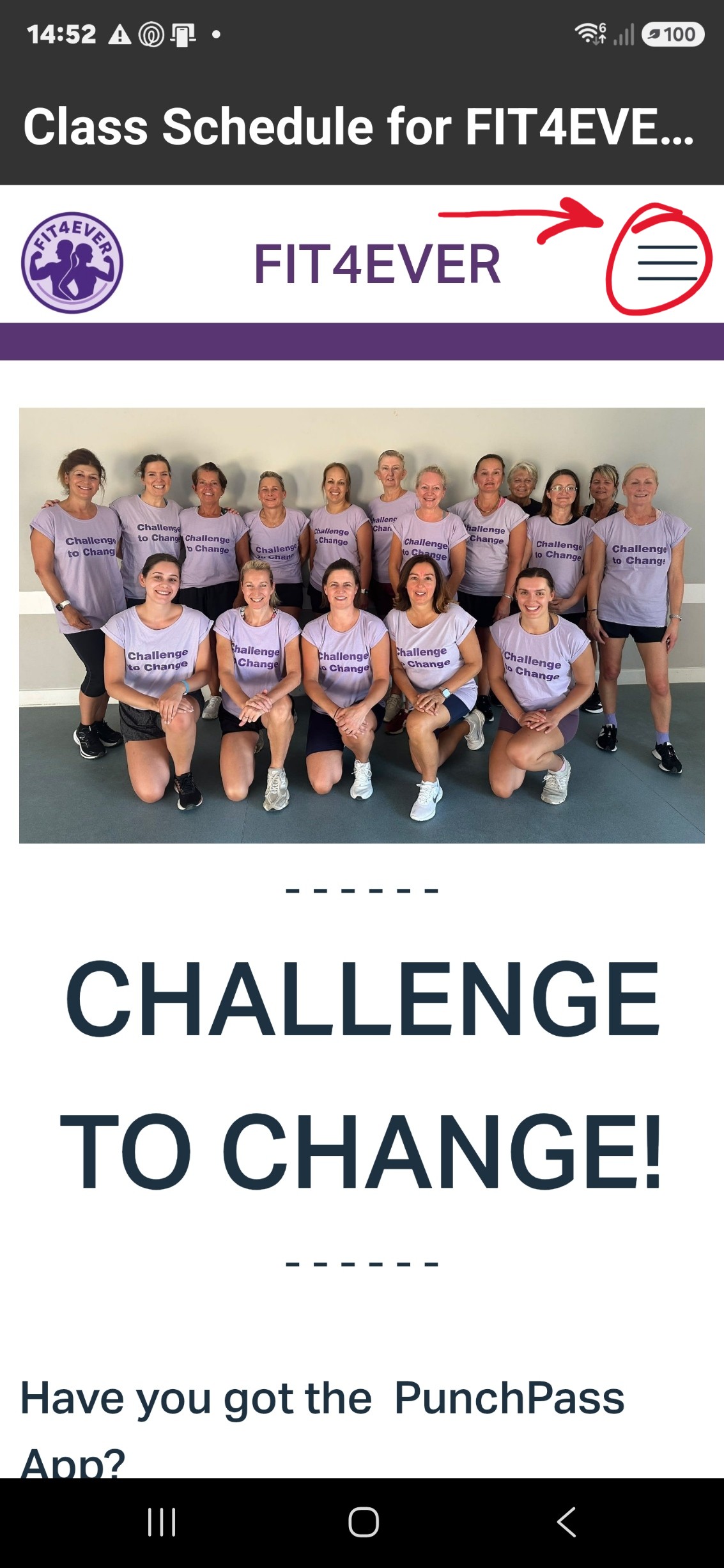
And once opened, you’ll see the menu items down the right hand side like this…
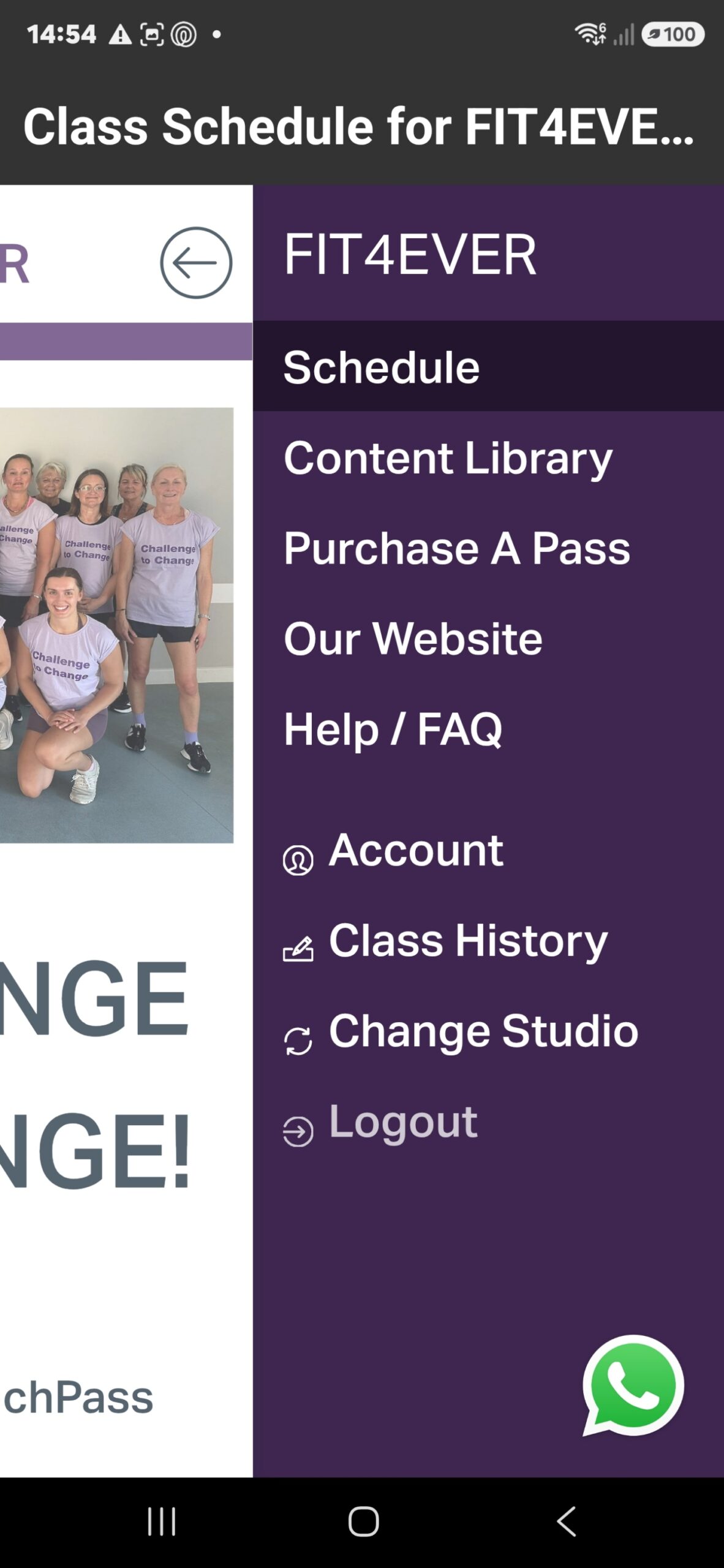
From the menu, just click on ‘Purchase A Pass’ and you’ll see the wide range of options available, from a single class to VIP membership and several options in between.
3
Step Three: Buying & Booking Classes
From the PunchPass menu you can now click on ‘Schedule’, and see all the upcoming classes. You can switch between a list view (Schedule) or calendar type view (Calendar) in your profile settings – whichever you prefer. You can also filter the results by class type or location. Under each class you can quickly see the class duration, location, and how many places are left to be reserved.
You can view these at any time, and if you click on a class it will open up with lots more information on that specific class. You can also read all about each class and what it involves here.
To reserve your place on any class you must have first bought a valid PunchPass or Membership.
Before your first booking can be made, you must read and sign the online liabilty waiver form. This only has to be done once.
Bookings can be made up to 4 weeks in advance for your convenience.
PunchPass in place, waiver form signed… Just click on a class, reserve your place, and turn up on the day. Nothing to pay in class, your PunchPass has already taken care of that – Simples!
Video Guides
Step-by-step visual guides to smoothly navigate the PunchPass app from sign up to booking fitness classes.
Create Account:
Book A Class:
Alter Booking:
Reset Password:
Add Credit Card:
HELP! – I’m Stuck!?!
Don’t panic! – We’re here to help guide you through. Drop us a line and we’ll get you up & running in no time!